Complete DS4Windows Setup Guide for Beginners
Learn how to set up DS4Windows from scratch, including driver installation, controller pairing, and basic configuration for optimal gaming performance.
Read More
Transform your PlayStation controller into the perfect Windows gaming companion. DS4Windows provides seamless connectivity, full customization, and professional-grade features for competitive and casual gamers alike.
DS4Windows is a portable program that allows you to get the best experience while using a DualShock 4 controller on your PC. By emulating Xbox 360 controller input, DS4Windows ensures maximum compatibility with all Windows games that support gamepad input.
Open-source code reviewed by thousands of developers worldwide
Minimal resource usage with zero impact on gaming performance
Supported by passionate developers and gaming enthusiasts
The most comprehensive DualShock 4 solution for Windows gaming
Full DualShock 4 compatibility with touchpad, light bar, motion sensors, and all buttons
Connect via Bluetooth or USB cable for maximum flexibility
Support up to 4 controllers simultaneously for local multiplayer
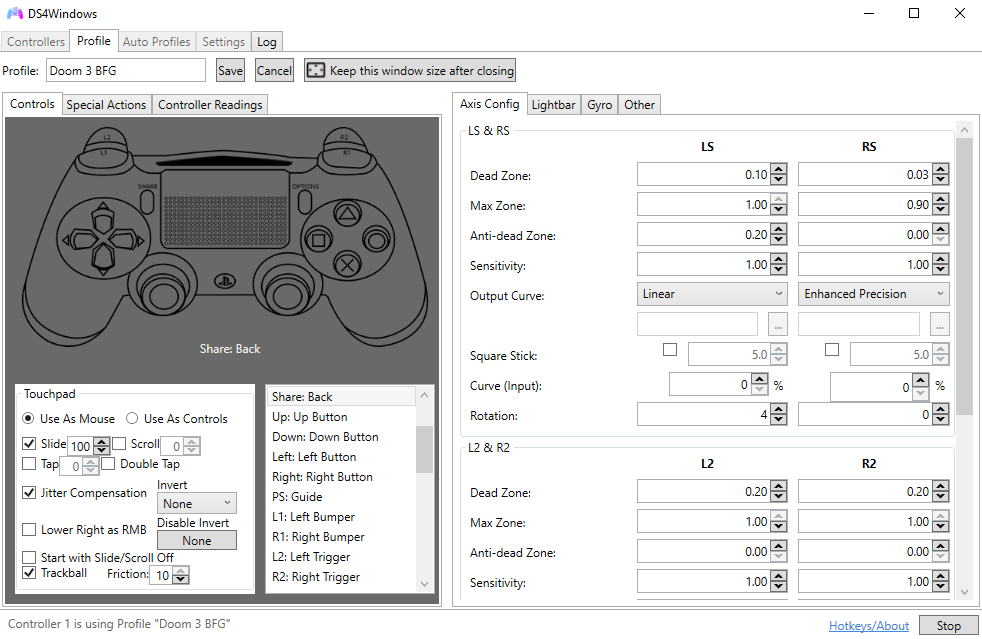
Remap any button to keyboard, mouse, or custom actions
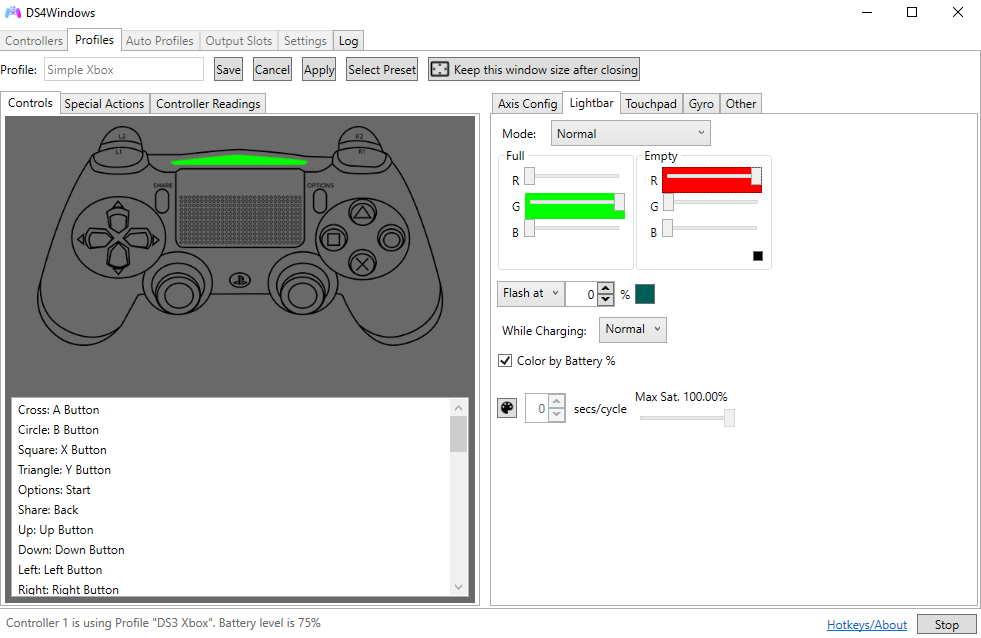
Customize colors, brightness, and battery indicators
Auto-switch profiles based on running games
Real-time battery level with low battery alerts
Create complex button combinations and sequences
1000Hz polling rate for competitive gaming
Prevent conflicts with games and other software
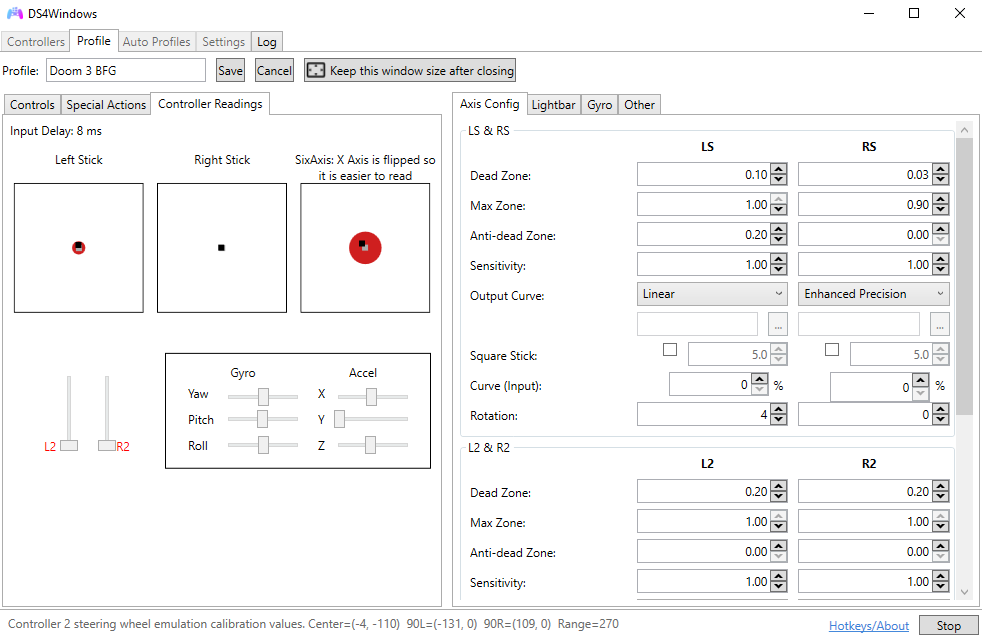
Experience the most advanced DualShock 4 management interface with real-time monitoring, instant customization, and seamless control
Automatic recognition and connection of DualShock 4 controllers with real-time status monitoring
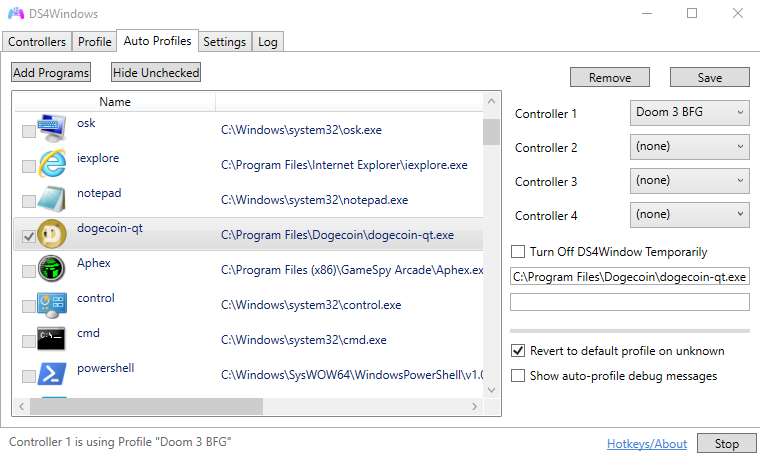
Automatic profile switching based on running applications with unlimited custom configurations
Full RGB light bar control, button mapping, and performance tuning with real-time preview
Free, open-source, and ready to use in minutes
The most recent stable release with all the latest features, improvements, and bug fixes. Recommended for all users.
Access older versions for compatibility or testing purposes.
Lightweight application with minimal system requirements
Windows 10/11 (64-bit)
Intel Core i3 or AMD equivalent
2 GB RAM (4 GB recommended)
50 MB available space
DualShock 4 (Any revision)
Bluetooth 2.1+ or USB 2.0
Follow our comprehensive guide to set up DS4Windows perfectly
Download the latest version from the official GitHub repository. Extract the ZIP file to a folder of your choice - DS4Windows is portable and doesn't require installation.
On first launch, DS4Windows will check for necessary drivers and frameworks. Follow the prompts to install ViGEmBus driver and any missing .NET components.
Administrator privileges may be required for driver installation
Make sure Bluetooth is enabled on your Windows PC. Open Settings > Devices > Bluetooth & other devices and turn on Bluetooth.
Hold the Share button and PS button simultaneously for 3-5 seconds until the light bar starts flashing white rapidly.
In Windows Bluetooth settings, click "Add Bluetooth or other device", select Bluetooth, and choose "Wireless Controller" when it appears in the list.
Run DS4Windows.exe and your controller should be detected automatically. The Controllers tab will show your connected device with battery status and connection quality.
Download the latest version from GitHub and extract to your preferred location. No installation necessary!
Use a micro-USB cable to connect your DualShock 4 to your PC. The controller's light bar should light up immediately.
Launch DS4Windows.exe. Your controller will be detected instantly and automatically configured with the default profile.
Customize every button, trigger, and stick to your preference:
Personalize your controller's appearance:
Create and manage profiles for different games:
Optimize for competitive gaming:
Solutions:
Solutions:
Solutions:
Solutions:
Solutions:
Solutions:
Find answers to the most common questions about DS4Windows
Yes! DS4Windows is 100% free and open-source software released under the MIT License. You can download, use, modify, and distribute it without any cost. There are no premium features, subscriptions, or hidden fees.
Absolutely! DS4Windows is completely safe and legal. It's open-source software that simply translates controller input to Xbox controller format. It doesn't modify games, inject code, or give unfair advantages. There's zero risk of bans from anti-cheat systems.
DS4Windows has basic support for DualSense controllers, allowing you to use them on Windows. However, for full DualSense-specific features like adaptive triggers and advanced haptics, we recommend using DualSenseX, which is specifically designed for PS5 controllers.
Yes, DS4Windows needs to run in the background to translate your controller input in real-time. However, it uses minimal system resources (typically under 50MB RAM) and can be minimized to the system tray. You can set it to start automatically with Windows for convenience.
Yes! DS4Windows supports up to 4 DualShock 4 controllers simultaneously, perfect for local multiplayer games. Each controller can have its own profile, button mapping, and light bar color for easy identification.
Absolutely! DS4Windows offers extensive customization options including complete button remapping, keyboard/mouse emulation, macro creation, sensitivity adjustment, dead zone configuration, and trigger customization. You can create unlimited profiles for different games.
DS4Windows works with any Windows game that supports Xbox 360/Xbox One controllers. This includes virtually all modern PC games with gamepad support. For games without native controller support, you can map buttons to keyboard and mouse inputs.
Yes! The DualShock 4 touchpad is fully supported. You can use it as a mouse, map touch gestures to buttons, configure swipe actions, or use it as additional buttons (click left/right, two-finger touch, etc.). The touchpad functionality is highly customizable in the profile settings.
Both have advantages! USB provides zero input lag, stable connection, and charges the controller. Bluetooth offers wireless freedom and is perfectly suitable for most games. For competitive gaming, USB is recommended. For casual gaming, Bluetooth works great.
DualShock 4 requires Bluetooth 2.1 or newer. Most modern PCs have Bluetooth 4.0+, which works perfectly. If your PC doesn't have built-in Bluetooth, you can use a USB Bluetooth adapter (Bluetooth 4.0+ recommended for best performance).
Typically 6-10 meters (20-33 feet) depending on your Bluetooth adapter and environmental factors. Walls, wireless routers, and other electronic devices can reduce range. For best results, maintain line of sight and minimize interference sources.
Yes! You can seamlessly switch between Bluetooth and USB connection at any time. Simply plug in the USB cable to switch to wired mode, or unplug to return to wireless. Your profiles and settings remain the same regardless of connection method.
Very accurate! DS4Windows reads battery level directly from the controller and displays it in real-time. You'll see percentage or icon indicators, and can set up notifications for low battery warnings. Battery status is shown in the system tray and main interface.
Yes! You can create complex macros by recording button sequences, setting delays, and configuring repeat options. Macros can be triggered by any button or button combination. This is useful for executing complex moves or automating repetitive actions.
Yes! DS4Windows fully supports the DualShock 4's gyroscope and accelerometer. You can use motion controls for camera movement, aiming, steering, or map them to mouse/keyboard inputs. Perfect for games that support gyro aiming or motion-based controls.
Absolutely! The Auto Profile feature automatically loads specific profiles when certain programs launch. Add your game's executable to a profile, and DS4Windows will switch to it automatically when you start the game, then revert when you close it.
Multiple support channels are available: GitHub Issues for bug reports, Discord server for real-time community help, Reddit community for discussions, and comprehensive documentation wiki. The community is very active and helpful!
DS4Windows is actively maintained with regular updates. Major updates come every few months with new features, while bug fixes and minor improvements are released more frequently. The project has been consistently maintained for years.
Yes! DS4Windows is open-source and welcomes contributions. You can help by reporting bugs, suggesting features, improving documentation, translating to other languages, or contributing code on GitHub. All contributions are appreciated!
Yes! DS4Windows works perfectly with Steam Big Picture and regular Steam. For best results, disable Steam's built-in PlayStation controller support to avoid conflicts. You can also use DS4Windows alongside Steam Input for advanced configurations.
Can't find your answer?
View Full DocumentationUnlock the full potential of DS4Windows with these professional tips and hidden features
Enable exclusive mode and set polling rate to 1000Hz for competitive gaming. Reduces input lag to under 1ms.
Set light bar to change color based on battery level: Green (100-50%), Yellow (50-20%), Red (20-0%).
Create game-specific profiles that automatically load when you launch your favorite games.
Record complex button combinations and assign them to single buttons for faster execution.
Use the controller's gyroscope for precise mouse control in FPS games. Adjust sensitivity for perfect aim.
Connect headphones to the controller's 3.5mm jack for game audio and voice chat.
Update Bluetooth drivers and disable power management to prevent connection drops.
Add DS4Windows to your antivirus whitelist to prevent false positive detections.
Regularly backup your profiles folder to avoid losing custom configurations.
Stay updated with the latest tips, tutorials, and news about DS4Windows
Learn how to set up DS4Windows from scratch, including driver installation, controller pairing, and basic configuration for optimal gaming performance.
Read More
Master the art of light bar customization with RGB effects, battery indicators, and game-specific lighting profiles for immersive gaming experiences.
Read More
Discover how to create custom profiles for different games, set up automatic profile switching, and optimize controller settings for each gaming genre.
Read More
Learn professional techniques to minimize input lag, optimize polling rates, and configure DS4Windows for the best competitive gaming performance.
Read More
Troubleshoot and resolve the most common Bluetooth connectivity problems with your DualShock 4 controller on Windows systems.
Read More
Master the art of macro creation for complex button sequences, perfect for fighting games, MMOs, and productivity applications.
Read More
Compare DS4Windows with Steam's built-in controller support, learn when to use each, and how to configure them for optimal compatibility.
Read More
Learn how to configure and use the DualShock 4's gyroscope for precise mouse control in first-person shooter games for console-like precision.
Read More
Configure your DualShock 4 controller for wireless audio, including game sound and voice chat through the controller's 3.5mm jack.
Read More
Discover proven methods to extend your DualShock 4 battery life, including power management settings and charging best practices.
Read MoreGet support, share configurations, and stay updated with the latest news
Access source code, report bugs, request features, and contribute to development. View changelogs and download all versions.
Join our active Discord community for real-time help, discussions, and news. Chat with developers and experienced users.
Connect with thousands of users, share profiles, get tips, and discuss gaming. Active community with helpful members.
Comprehensive guides, tutorials, troubleshooting, and detailed feature explanations. Everything you need to master DS4Windows.
Join millions of gamers worldwide using DS4Windows for the ultimate controller experience on Windows