Introduction to Light Bar Customization
The DualShock 4's light bar is more than just a visual indicator—it's a powerful customization tool that can enhance your gaming experience. With DS4Windows, you can create stunning RGB effects, implement battery monitoring, and set up game-specific lighting profiles that respond to your gameplay.
Understanding RGB Color Theory
Before diving into customization, it's essential to understand how RGB colors work. The light bar uses Red, Green, and Blue values (0-255) to create millions of color combinations. Understanding color theory will help you create more appealing and functional lighting schemes.
Color Psychology in Gaming
- Red: Alert, danger, low battery, enemy presence
- Green: Safe, health, success, ally status
- Blue: Calm, technology, information, neutral state
- Yellow/Orange: Warning, caution, medium battery
- Purple: Magic, special abilities, premium features
- White: Neutral, maximum brightness, clean state
Basic Light Bar Configuration
Start with DS4Windows' built-in light bar settings to understand the fundamentals:
Static Color Settings
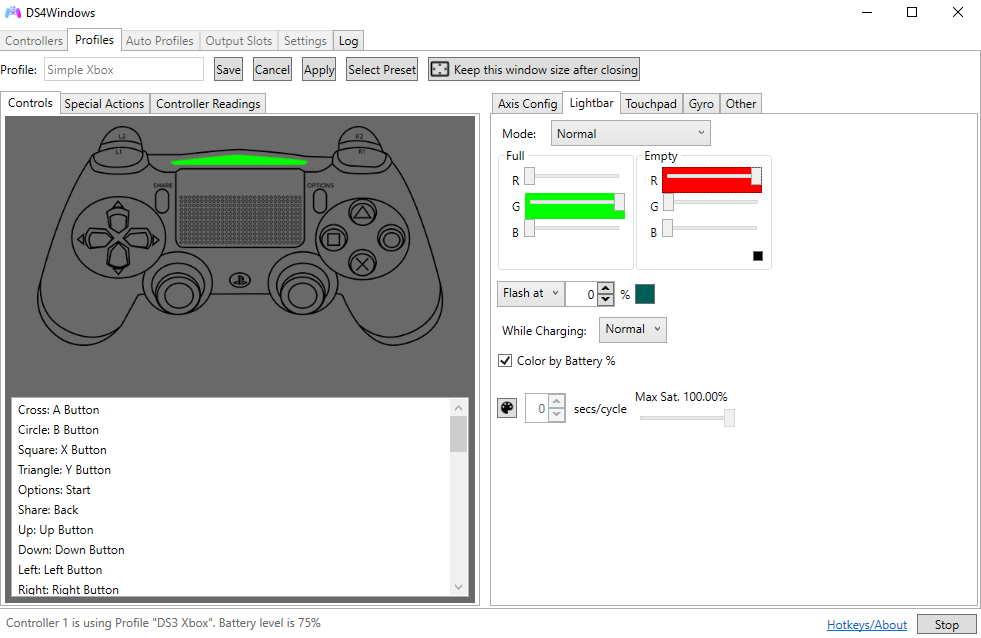
- Open DS4Windows and select your controller
- Navigate to the "Lightbar" tab
- Choose "Custom Color" from the dropdown
- Adjust RGB sliders to your preferred color
- Test the color in real-time
Brightness Control
Proper brightness management is crucial for both aesthetics and battery life:
- High (100%): Maximum visibility, higher battery drain
- Medium (50-75%): Balanced visibility and battery life
- Low (25-50%): Subtle effect, extended battery life
- Dim (10-25%): Minimal visibility, maximum battery efficiency
Advanced RGB Effects
Create dynamic lighting effects that respond to your gaming environment:
Battery Level Indicators
Set up automatic color changes based on battery level:
- 100-75%: Bright green - Full power
- 75-50%: Yellow - Good charge
- 50-25%: Orange - Low battery warning
- 25-0%: Red - Critical battery level
Game-Specific Profiles
Create unique lighting profiles for different game genres:
FPS Games
- Health High: Green light bar
- Health Medium: Yellow light bar
- Health Low: Red light bar
- Reloading: Flashing blue
- Enemy Nearby: Pulsing red
Racing Games
- Normal Speed: Blue light bar
- High Speed: White light bar
- Boost Active: Flashing yellow
- Damage Taken: Red flash
- Lap Complete: Green pulse
Creating Custom Lighting Scripts
For advanced users, DS4Windows supports custom lighting scripts using JavaScript:
Basic Script Structure
// Example: Breathing effect
function breathingEffect() {
    let brightness = Math.sin(Date.now() / 1000) * 0.5 + 0.5;
    setLightBar(255, 0, 0, brightness * 100); // Red breathing
}

// Example: Rainbow cycle
function rainbowCycle() {
    let hue = (Date.now() / 100) % 360;
    let rgb = hslToRgb(hue, 1, 0.5);
    setLightBar(rgb[0], rgb[1], rgb[2], 75);
}
Performance Optimization
Advanced lighting effects can impact performance. Follow these optimization tips:
Efficiency Guidelines
- Update Frequency: Limit updates to 30-60 FPS
- Color Transitions: Use smooth interpolation
- Effect Complexity: Balance visual appeal with performance
- Battery Management: Reduce brightness during long sessions
Popular Lighting Presets
Here are some community-favorite lighting configurations:
Gaming Presets
- Stealth Mode: Very dim blue (5% brightness)
- Party Mode: Fast rainbow cycle
- Focus Mode: Steady warm white
- Alert Mode: Pulsing red for notifications
Professional Presets
- Streaming: Brand colors with smooth transitions
- Competitive: Minimal distraction, battery-focused
- Content Creation: Dynamic effects for visual appeal
Troubleshooting Light Bar Issues
Common problems and their solutions:
Light Bar Not Responding
- Check controller connection stability
- Restart DS4Windows
- Verify light bar settings are enabled
- Update to latest DS4Windows version
Colors Not Accurate
- Calibrate RGB values for your specific controller
- Check for interference from other lighting software
- Adjust brightness settings
Advanced Tips and Tricks
- Layered Effects: Combine multiple lighting patterns
- Audio Reactive: Sync lighting with game audio
- Time-Based: Change colors based on time of day
- Weather Integration: Match lighting to real weather
- Social Features: Share lighting profiles with friends
Conclusion
Mastering light bar customization transforms your DualShock 4 from a simple controller into a dynamic gaming accessory. With the right techniques and creativity, you can create immersive lighting experiences that enhance gameplay and express your personal style.
Experiment with different effects, share your creations with the community, and discover new ways to make your gaming setup truly unique.