Table of Contents
- Introduction to DS4Windows
- System Requirements
- Step 1: Download DS4Windows
- Step 2: Install Required Dependencies
- Step 3: Controller Connection
- Step 4: First Launch Configuration
- Step 5: Basic Configuration
- Step 6: Testing Your Setup
- Troubleshooting Common Issues
- Advanced Tips for Better Performance
- Conclusion
Introduction to DS4Windows
DS4Windows is a powerful, free application that allows you to use your PlayStation DualShock 4 controller on Windows PC. Whether you're a casual gamer or a competitive player, DS4Windows provides seamless integration with your favorite games, offering advanced customization options and professional-grade features.
System Requirements
Before installing DS4Windows, ensure your system meets these requirements:
- Operating System: Windows 10 (64-bit) or Windows 11
- Processor: Intel Core i3 or AMD equivalent
- Memory: 2 GB RAM minimum (4 GB recommended)
- Storage: 50 MB available space
- Controller: DualShock 4 (any revision)
- Connectivity: Bluetooth 2.1+ or USB 2.0
Step 1: Download DS4Windows
Visit the official DS4Windows GitHub repository to download the latest version. The application is completely free and open-source, ensuring regular updates and community support.
Download Links
Step 2: Install Required Dependencies
DS4Windows requires several components to function properly. These will be automatically detected and prompted for installation when you first run the application.
Required Components:
- .NET Framework 4.8: Runtime environment for DS4Windows
- ViGEmBus Driver: Virtual gamepad emulation driver
- Visual C++ Redistributable: Required runtime components
Step 3: Controller Connection
Connect your DualShock 4 controller to your PC using one of these methods:
USB Connection (Recommended for Setup)
- Connect your DualShock 4 to your PC using a USB cable
- Windows should automatically detect the controller
- Wait for driver installation to complete
Bluetooth Connection
For wireless gaming, you can connect your controller via Bluetooth. If you encounter any connection issues, check out our guide on fixing Bluetooth connection problems.
- Enable Bluetooth on your PC
- Hold PS + Share buttons on your controller for 3 seconds
- Select "Wireless Controller" from the Bluetooth devices list
- Complete the pairing process
Step 4: First Launch Configuration
When you first launch DS4Windows, you'll be guided through the initial setup process:
- Driver Installation: Install ViGEmBus driver if prompted
- Controller Detection: Your controller should appear in the main window
- Profile Selection: Choose a default profile or create a new one
- Settings Configuration: Adjust basic settings for your preferences
Step 5: Basic Configuration
Configure DS4Windows for optimal performance with these essential settings:
Controller Settings
- Hide DS4 Controller: Enable to prevent conflicts with games
- Exclusive Mode: Recommended for best performance
- Polling Rate: Set to 1000Hz for competitive gaming. Learn more in our competitive gaming optimization guide
Light Bar Settings
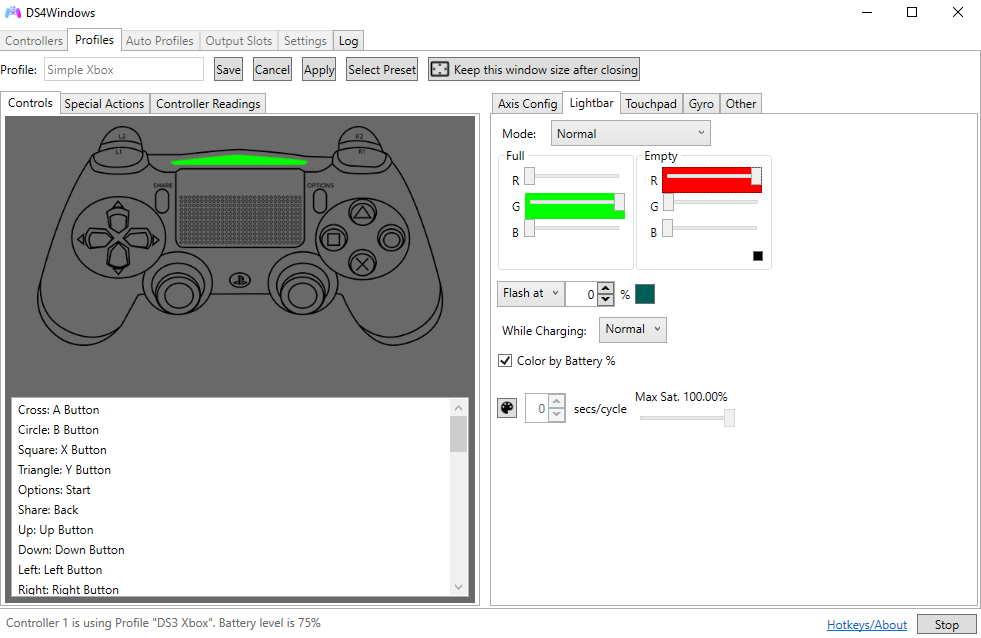
- Battery Indicator: Use light bar to show battery level. For advanced customization, see our light bar customization guide
- Custom Colors: Set your preferred RGB colors
- Game Integration: Enable for supported games
Step 6: Testing Your Setup
Verify that everything is working correctly:
- Open DS4Windows and check controller status
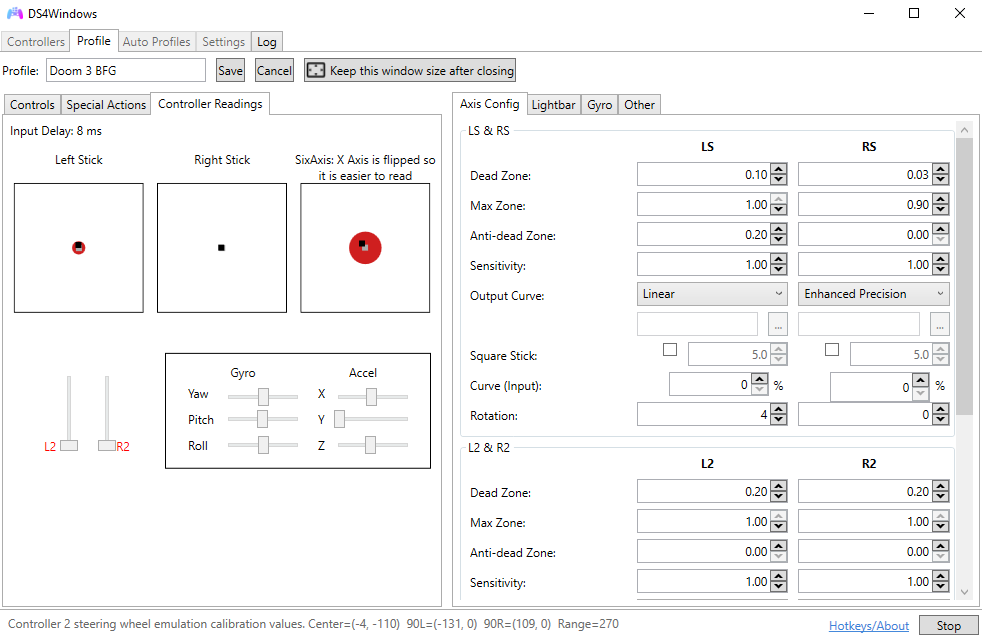
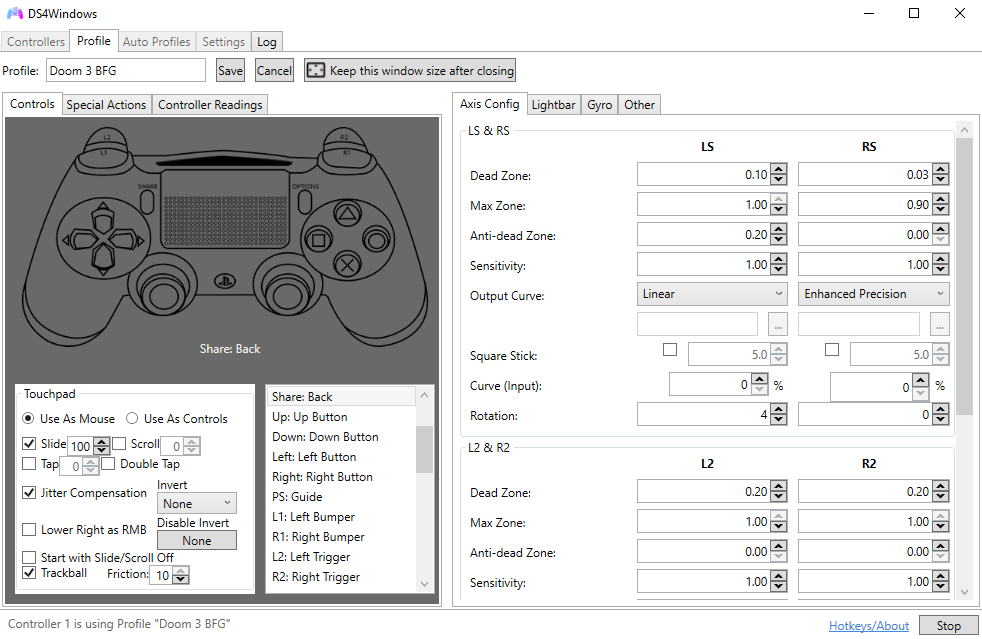
- Test all buttons and analog sticks
- Verify rumble functionality
- Check light bar responsiveness
- Test with a compatible game
Troubleshooting Common Issues
If you encounter problems during setup, try these solutions:
Controller Not Detected
- Ensure USB cable is data-capable, not just for charging
- Try a different USB port
- Restart DS4Windows as administrator
- Check Windows Device Manager for driver issues
Bluetooth Connection Problems
For detailed troubleshooting steps, see our comprehensive Bluetooth connection troubleshooting guide.
- Update Bluetooth drivers
- Disable power management for Bluetooth adapter
- Remove and re-pair the controller
- Check for interference from other devices
Advanced Tips for Better Performance
- USB Connection: Use wired connection for lowest latency
- Exclusive Mode: Always enable for best performance
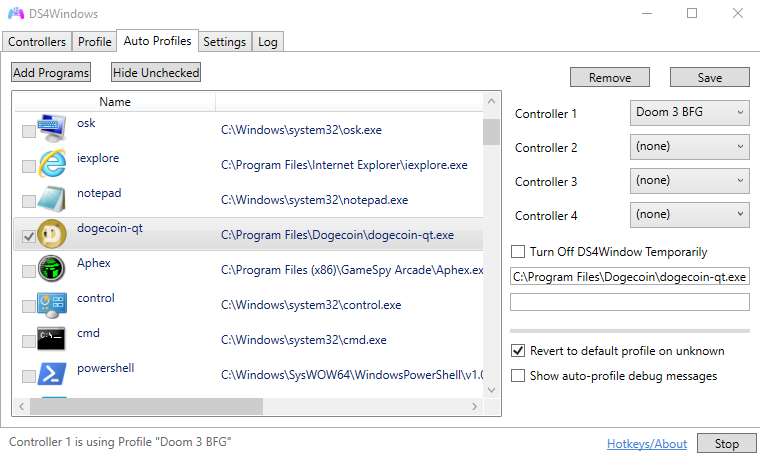
- Profile Management: Create game-specific profiles. Learn how in our game-specific profiles guide
- Regular Updates: Keep DS4Windows updated for latest features
Conclusion
With DS4Windows properly configured, you now have a powerful tool that transforms your DualShock 4 into the ultimate PC gaming controller. The application offers extensive customization options, professional-grade features, and seamless integration with thousands of games.
For more advanced features and customization options, explore our other guides on profile management, macro creation, and performance optimization.