Understanding DS4Windows Profiles
DS4Windows profiles are configuration files that store all your controller settings, button mappings, and customization options. By creating game-specific profiles, you can optimize your controller for different gaming experiences without manually adjusting settings each time you switch games.
Why Use Game-Specific Profiles?
Different games require different controller configurations for optimal performance:
- FPS Games: Require precise analog stick sensitivity and trigger response
- Racing Games: Need optimized trigger curves for acceleration and braking
- Fighting Games: Benefit from specific button layouts and macro assignments
- RPG Games: May need custom button mappings for inventory and menus
- Platformers: Require different jump and movement sensitivity
Creating Your First Profile
Let's start by creating a basic profile and then customize it for a specific game:
Step 1: Access Profile Manager
- Open DS4Windows
- Click on the "Profiles" tab
- Select "New Profile" from the dropdown menu
- Give your profile a descriptive name (e.g., "Call of Duty - FPS")
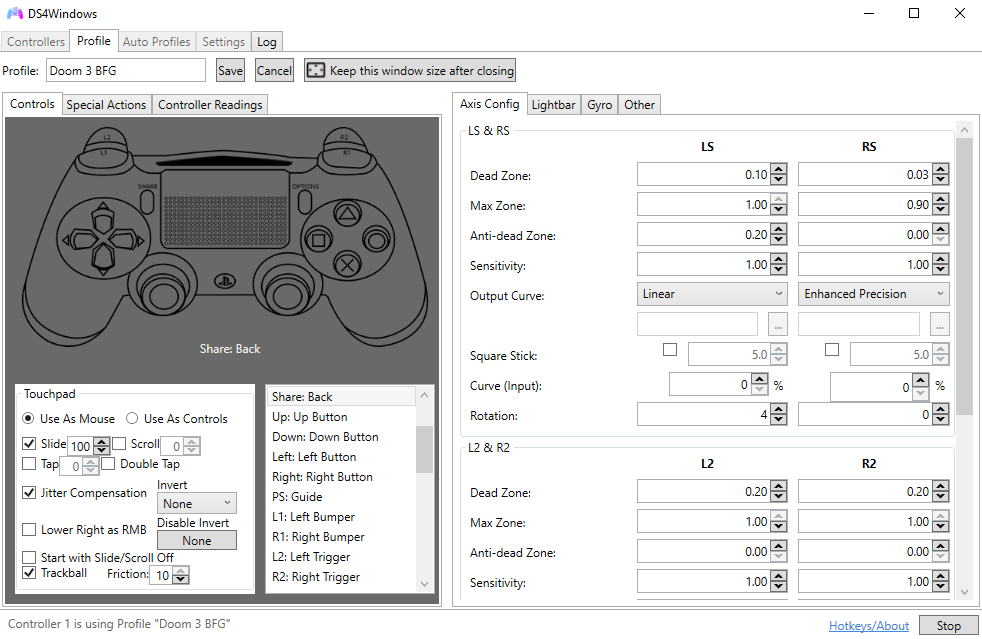
Step 2: Basic Profile Configuration
Configure the fundamental settings for your profile:
Essential Settings
- Profile Name: Descriptive and memorable
- Controller Type: DualShock 4
- Connection Type: USB/Bluetooth
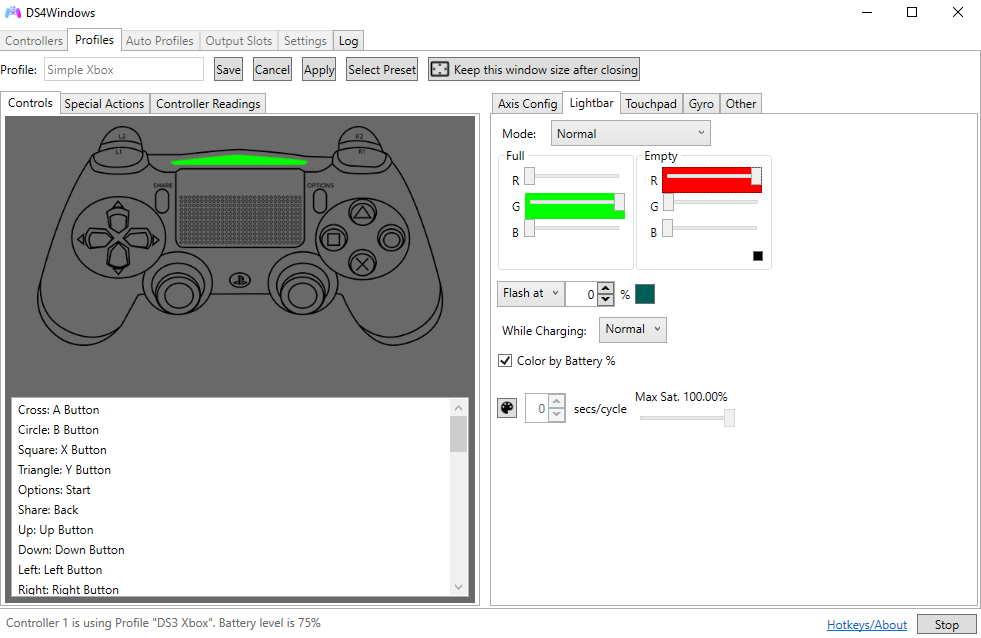
- Light Bar: Game-appropriate colors
- Rumble: Intensity and frequency
Advanced Profile Customization
Customize your profile with advanced settings for optimal gaming performance:
Analog Stick Configuration
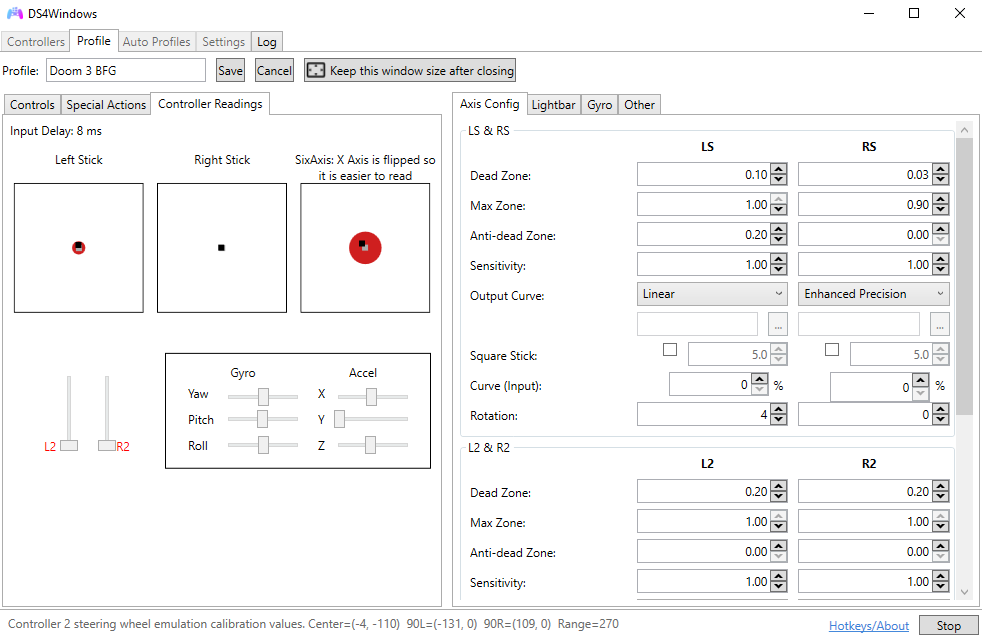
Fine-tune analog stick sensitivity and dead zones:
- Dead Zone: Minimum movement required to register input
- Anti-Dead Zone: Compensates for stick wear
- Sensitivity: Overall stick responsiveness
- Curve: Linear, exponential, or custom response curves
Trigger Configuration
Optimize trigger response for different game types:
- FPS Games: Hair-trigger response for quick shooting
- Racing Games: Gradual response for smooth acceleration
- Action Games: Balanced response for versatility
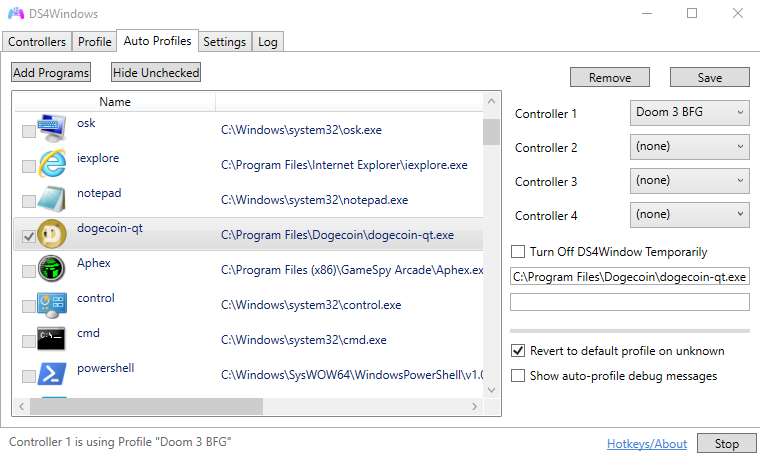
Setting Up Automatic Profile Switching
DS4Windows can automatically switch profiles when you launch specific games:
Auto-Profile Configuration
- Go to the "Auto Profiles" tab in DS4Windows
- Click "Add" to create a new auto-profile rule
- Select the executable file of your game
- Choose the profile to load when the game starts
- Set the profile to revert when the game closes
Advanced Auto-Profile Rules
Create more sophisticated switching rules:
- Window Title Matching: Switch based on window title
- Process Name Matching: Switch based on process name
- Multiple Conditions: Combine multiple criteria
- Priority System: Set rule priority for conflicts
Game-Specific Profile Examples
Here are detailed examples for popular game genres:
FPS Games (Call of Duty, Battlefield)
FPS Profile Settings
- Right Stick Sensitivity: 1.2x for precise aiming
- Left Stick Sensitivity: 1.0x for normal movement
- Trigger Response: Hair-trigger for quick shooting
- Light Bar: Red for enemy detection, green for health
- Rumble: Reduced intensity to avoid distraction
- Dead Zones: Minimal for maximum precision
Racing Games (Forza, Gran Turismo)
Racing Profile Settings
- Right Trigger: Gradual curve for smooth acceleration
- Left Trigger: Gradual curve for smooth braking
- Left Stick: High sensitivity for quick steering
- Light Bar: Blue for normal speed, white for boost
- Rumble: Enhanced for road feedback
- Button Mapping: Custom for racing controls
Fighting Games (Street Fighter, Tekken)
Fighting Profile Settings
- D-Pad Sensitivity: High for precise inputs
- Button Response: Instant for combo execution
- Macro Assignments: Complex move combinations
- Light Bar: Dynamic colors for special moves
- Rumble: Disabled to avoid input interference
- Dead Zones: Minimal for precise control
Profile Management Best Practices
Follow these tips for effective profile management:
Organization Tips
- Naming Convention: Use consistent naming (Game - Genre)
- Backup Profiles: Regularly backup your profile folder
- Version Control: Keep track of profile versions
- Documentation: Note special settings and their purposes
Sharing and Community
- Profile Sharing: Share profiles with the community
- Community Profiles: Download profiles from other users
- Feedback: Get feedback on your profile configurations
- Updates: Keep profiles updated with game patches
Troubleshooting Profile Issues
Common problems and their solutions:
Profile Not Loading
- Check profile file integrity
- Verify profile is in the correct folder
- Restart DS4Windows
- Check for conflicting profiles
Auto-Profile Not Switching
- Verify game executable path
- Check auto-profile rule priority
- Ensure game is running as expected
- Test with manual profile switching
Advanced Profile Features
Explore advanced features for power users:
Macro Integration
- Complex Combos: Create multi-button sequences
- Timing Control: Precise timing for macro execution
- Conditional Macros: Macros that respond to game state
- Loop Macros: Repeating actions for farming/grinding
Sensor Integration
- Gyroscope: Motion controls for specific games
- Accelerometer: Tilt controls and gestures
- Touchpad: Custom touchpad mappings
- Sixaxis: Advanced motion sensing
Profile Performance Optimization
Optimize your profiles for the best performance:
- Minimal Overhead: Use only necessary features
- Efficient Macros: Optimize macro timing and complexity
- Smart Switching: Use auto-profiles to reduce manual switching
- Regular Cleanup: Remove unused profiles and settings
Conclusion
Game-specific profiles are the key to unlocking the full potential of your DualShock 4 controller. By creating tailored configurations for different games and genres, you can achieve optimal performance and enhance your gaming experience significantly.
Start with basic profiles and gradually add complexity as you become more comfortable with DS4Windows' advanced features. The time invested in creating quality profiles will pay dividends in improved gameplay and controller responsiveness.