Introduzione to Giroscopio Controls
The DualShock 4's built-in Giroscopio is a powerful Funzionalità that can provide precise motion-based control for Mouse movement in FPS Giochi. This technology allows for fine-tuned aiming adjustments that complement traditional analog stick controls, offering console-like precision on PC.
Comprendere Giroscopio Technology
The Giroscopio in the DualShock 4 detects rotational movement around three axes:
- Pitch (X-axis): Tilting forward and backward
- Yaw (Y-axis): Rotating left and right
- Roll (Z-axis): Tilting left and right
How It Works
The Giroscopio measures angular velocity and converts it to Mouse movement. This allows for precise, intuitive aiming that feels natural and responsive, similar to how you would aim a real weapon or camera.
Setting Up Giroscopio Controls
Configure Giroscopio controls in DS4Windows for optimal FPS Prestazioni:
Basic Configurazione
- Open DS4Windows: Launch the application
- Select Profilo: Choose your FPS Gaming Profilo
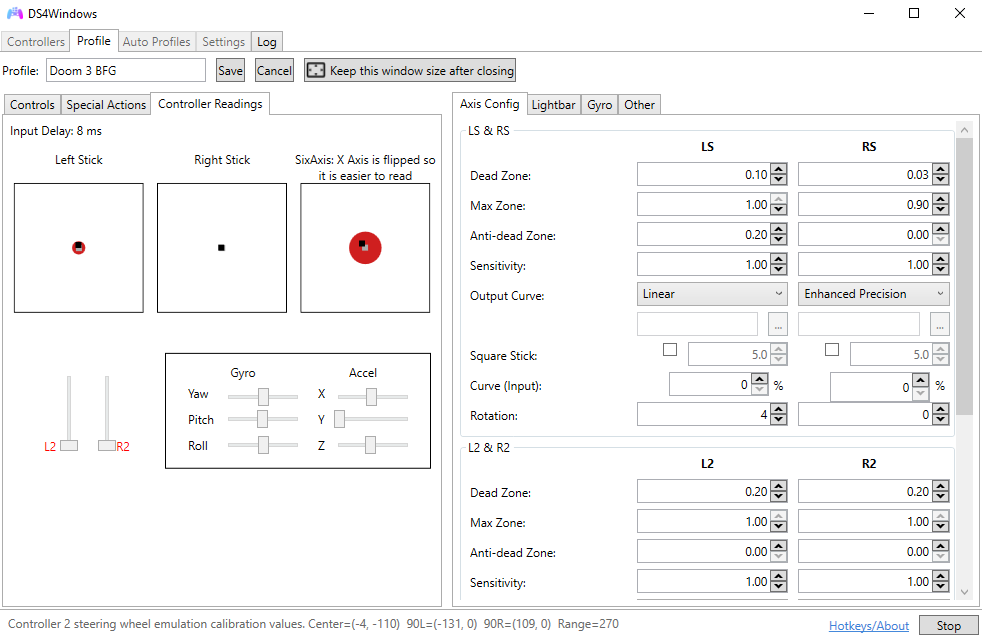
- Navigate to Gyro: Go to the Gyro tab
- Abilita Gyro: Check "Abilita Gyro Controls"
- Set Output: Choose "Mouse" as output type
Axis Configurazione
Consigliato Axis Impostazioni
- Yaw (Y-axis): Primary horizontal Mouse movement
- Pitch (X-axis): Primary vertical Mouse movement
- Roll (Z-axis): Disabled for FPS Giochi
Sensitivity and Calibration
Proper sensitivity Impostazioni are crucial for effective Giroscopio control:
Sensitivity Impostazioni
- Low Sensitivity (1-3): Precise aiming, requires larger movements
- Medium Sensitivity (4-6): Balanced precision and responsiveness
- High Sensitivity (7-10): Quick movements, less precision
Calibration Process
- Center Position: Hold Controller in neutral position
- Start Calibration: Click "Calibrate Gyro" in DS4Windows
- Hold Still: Keep Controller motionless for 3 seconds
- Completa Calibration: Wait for confirmation
- Test Movement: Verify Giroscopio responds correctly
Avanzato Configurazione Opzioni
Fine-tune Giroscopio Impostazioni for optimal Prestazioni:
Dead Zone Impostazioni
- Minimal Dead Zone: Maximum precision for Competitivo play
- Small Dead Zone: Reduces accidental movement
- Medium Dead Zone: Comfortable for casual Gaming
- Large Dead Zone: Prevents drift and unwanted movement
Response Curves
- Linear: Direct 1:1 movement mapping
- Exponential: Faster response for larger movements
- Logarithmic: Slower response for larger movements
- Custom: User-defined response curve
FPS Gioco Ottimizzazione
Ottimizza Giroscopio Impostazioni for different FPS Gioco types:
Competitivo FPS Giochi
Competitivo Impostazioni
- Sensitivity: Low (2-4) for maximum precision
- Dead Zone: Minimal to prevent drift
- Response Curve: Linear for consistent feel
- Activation: Always on or trigger-based
Casual FPS Giochi
Casual Impostazioni
- Sensitivity: Medium (5-7) for comfort
- Dead Zone: Small to medium
- Response Curve: Exponential for responsiveness
- Activation: ADS (Aim Down Sights) only
Activation Methods
Choose how and Quando Giroscopio controls activate:
Always On
- Vantaggi: Consistent control, no activation delay
- Disadvantages: May interfere with general movement
- Migliore For: Competitivo players, precise aiming
Trigger-Based Activation
- Vantaggi: Only active Quando aiming, less interference
- Disadvantages: Slight activation delay
- Migliore For: Casual players, comfort-focused Gaming
Button Toggle
- Vantaggi: Full control over activation
- Disadvantages: Requires manual Gestione
- Migliore For: Experienced users, Specifico scenarios
Combining with Analog Sticks
The most effective approach combines Giroscopio with analog stick controls:
Hybrid Control Strategy
- Analog Sticks: Large movements and general aiming
- Giroscopio: Fine adjustments and precision aiming
- Complementary Usare: Each Input method for its strengths
- Seamless Integrazione: Smooth transition between methods
Optimal Sensitivity Balance
- Analog Sensitivity: Medium-high for quick turns
- Gyro Sensitivity: Low-medium for precision
- Balance Testing: Adjust until both feel natural
- Game-Specific Tuning: Fine-tune per Gioco requirements
Practice and Training
Develop muscle memory for effective Giroscopio control:
Training Exercises
- Target Practice: Usare aim training maps and tools
- Tracking Drills: Follow moving targets smoothly
- Flick Practice: Quick target acquisition training
- Consistency Training: Maintain steady aim over time
Progressive Training
- Start Slow: Begin with low sensitivity
- Gradual Increase: Slowly increase sensitivity
- Consistency Focus: Prioritize accuracy over speed
- Speed Development: Add speed once accuracy is consistent
Game-Specific Suggerimenti
Ottimizza Giroscopio Impostazioni for popular FPS Giochi:
Counter-Strike 2
- Sensitivity: Very low (1-3) for precision
- Activation: Always on or ADS only
- Focus: Headshot accuracy and spray control
Valorant
- Sensitivity: Low-medium (3-5)
- Activation: ADS for precise shots
- Focus: Crosshair placement and micro-adjustments
Apex Legends
- Sensitivity: Medium (4-6)
- Activation: Always on for tracking
- Focus: Target tracking and recoil control
Risoluzione problemi Common Problemi
Resolve common Giroscopio problems:
Drift Problemi
- Recalibrate: Perform fresh calibration
- Dead Zone: Increase dead zone Impostazioni
- Surface Check: Ensure stable surface for calibration
- Temperature: Allow Controller to reach room temperature
Inconsistent Response
- Batteria Level: Ensure adequate Batteria charge
- Connessione Quality: Check Bluetooth/USB Connessione
- Interference: Remove sources of electromagnetic interference
- Driver Updates: Update DS4Windows and system Driver
Avanzato Techniques
Master Avanzato Giroscopio techniques:
- Micro-Adjustments: Usare gyro for pixel-perfect aiming
- Recoil Compensation: Counter weapon recoil with gyro
- Tracking Mastery: Smooth target following
- Flick Shots: Quick target acquisition
- Stability Training: Maintain steady aim during movement
Conclusion
Giroscopio controls offer a unique and effective way to enhance precision in FPS Giochi. While they require practice and proper Configurazione, they can significantly improve your aiming accuracy and provide a more immersive Gaming experience.
Start with conservative Impostazioni and gradually increase sensitivity as you become more comfortable. Remember that Giroscopio controls work Migliore Quando combined with traditional analog stick controls, creating a hybrid approach that leverages the strengths of both Input methods.