Understanding ब्लूटूथ Connectivity
ब्लूटूथ connectivity issues with the DualShock 4 controller are among the most common problems users face. These issues can range from connection failures to intermittent disconnections, input lag, or poor signal quality. Understanding the root causes and implementing proper solutions can restore stable wireless gaming.
Common ब्लूटूथ Issues
Here are the most frequently encountered ब्लूटूथ problems and their solutions:
कंट्रोलर नहीं मिल रहा
When your controller doesn't appear in the ब्लूटूथ device list:
समाधान के चरण
- Reset Controller: Hold PS + Share buttons for 3 seconds
- Check ब्लूटूथ: Ensure ब्लूटूथ is enabled on your PC
- Update Drivers: Install latest ब्लूटूथ drivers
- Restart Services: Restart ब्लूटूथ support service
- Try Different Port: Use a different USB port for ब्लूटूथ adapter
कनेक्शन Drops Frequently
Intermittent disconnections during gameplay:
- Power Management: Disable ब्लूटूथ power saving
- Interference: Remove devices causing signal interference
- Distance: Stay within 10 feet of the ब्लूटूथ adapter
- Battery Level: Ensure controller has sufficient charge
- Driver Issues: Update or reinstall ब्लूटूथ drivers
उच्च इनपुट लैग
Delayed response when using ब्लूटूथ connection:
- Adapter Quality: Use a high-quality ब्लूटूथ adapter
- USB 3.0 Interference: Avoid USB 3.0 ports for ब्लूटूथ adapter
- Background Apps: Close unnecessary applications
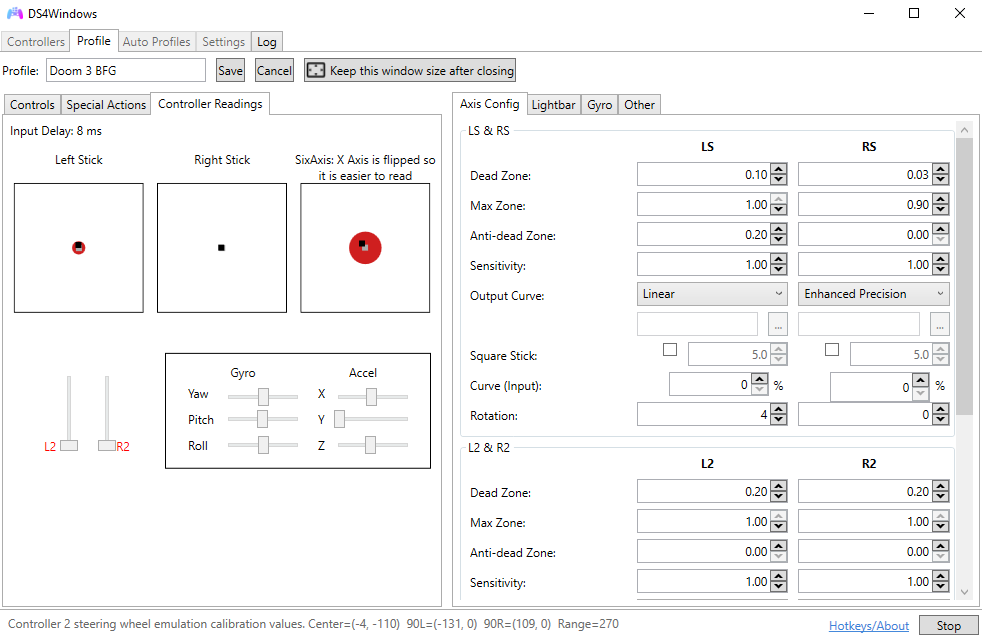
- Polling Rate: Adjust DS4Windows polling rate
- Exclusive Mode: Enable exclusive mode in DS4Windows
Windows ब्लूटूथ Configuration
Proper Windows ब्लूटूथ setup is crucial for stable connections:
ब्लूटूथ Settings अनुकूलन
- Open Settings: Go to Windows सेटिंग्स > Devices > ब्लूटूथ
- उन्नत Options: Click "More ब्लूटूथ options"
- Discovery: Enable "Allow ब्लूटूथ devices to find this PC"
- Notifications: Enable connection notifications
- Power Management: Disable "Allow the computer to turn off this device"
डिवाइस मैनेजर कॉन्फ़िगरेशन
- Open Device Manager: Right-click Start > Device Manager
- ब्लूटूथ Section: Expand ब्लूटूथ section
- Adapter Properties: Right-click your ब्लूटूथ adapter
- Power Management: Uncheck "Allow computer to turn off device"
- उन्नत Settings: Configure advanced ब्लूटूथ settings
DS4Windows ब्लूटूथ Settings
Optimize DS4Windows for ब्लूटूथ connectivity:
कनेक्शन Settings
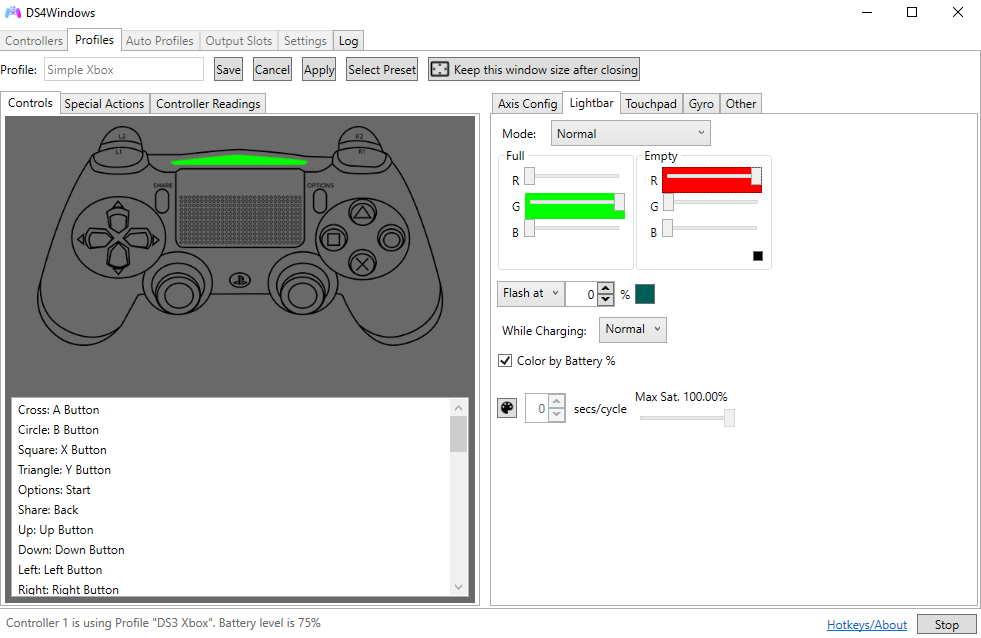
- Hide DS4 Controller: Enable to prevent conflicts
- Exclusive Mode: Enable for better performance
- Polling Rate: Set to 500Hz or 1000Hz
- कनेक्शन Timeout: Increase timeout values
- Auto-Connect: Enable automatic reconnection
उन्नत ब्लूटूथ Options
- Low Latency Mode: Enable for reduced input lag
- कनेक्शन Priority: Set to high priority
- Retry Logic: Configure connection retry attempts
- Signal Monitoring: Monitor connection quality
Hardware समस्या निवारण
Hardware-related issues and their solutions:
ब्लूटूथ Adapter Issues
Adapter समस्या निवारण
- USB Port: Try different USB ports
- Adapter Quality: Use certified ब्लूटूथ adapters
- Driver Updates: Install latest adapter drivers
- Physical Damage: Check for adapter damage
- Compatibility: Ensure Windows 10/11 compatibility
कंट्रोलर हार्डवेयर
- Battery Condition: Check battery health and charge level
- Physical Damage: Inspect controller for damage
- Button Functionality: Test all buttons and sticks
- Reset Function: Use hardware reset if needed
सॉफ़्टवेयर समाधान
Software-based fixes for persistent issues:
ड्राइवर प्रबंधन
- Uninstall Drivers: Remove existing ब्लूटूथ drivers
- Restart System: Reboot your computer
- Reinstall Drivers: Install latest drivers from manufacturer
- Windows Updates: Install latest Windows updates
- Driver Verification: Verify driver installation
रजिस्ट्री सुधार
उन्नत users can try registry modifications:
- ब्लूटूथ Registry: Modify ब्लूटूथ registry entries
- Power Settings: Adjust power management settings
- Service Configuration: Configure ब्लूटूथ services
- Backup Registry: Always backup before making changes
वैकल्पिक समाधान
When ब्लूटूथ continues to fail, consider these alternatives:
USB कनेक्शन
- Wired Gaming: Use USB cable for stable connection
- Lower Latency: USB provides lowest input lag
- No Interference: Eliminates wireless interference issues
- Consistent Power: No battery concerns
थर्ड‑पार्टी समाधान
- Alternative Software: Try other controller software
- Hardware Upgrades: Upgrade ब्लूटूथ adapter
- External Solutions: Use external ब्लूटूथ receivers
Prevention सुझाव
Prevent future ब्लूटूथ issues with these practices:
- Regular Updates: Keep drivers and software updated
- Clean Environment: Minimize wireless interference
- Proper Storage: Store controller in safe location
- Battery Management: Maintain proper battery levels
- System Maintenance: Regular system cleanup and optimization
उन्नत समस्या निवारण
For persistent issues, try these advanced techniques:
नेटवर्क डायग्नोस्टिक्स
- ब्लूटूथ Troubleshooter: Use Windows built-in troubleshooter
- Event Viewer: Check Windows Event Viewer for errors
- System File Check: Run SFC /scannow command
- DISM Repair: Use DISM to repair system files
प्रोफेशनल टूल्स
- ब्लूटूथ Analyzer: Use professional ब्लूटूथ analysis tools
- Signal Monitoring: Monitor ब्लूटूथ signal strength
- प्रदर्शन Testing: Test connection performance
निष्कर्ष
ब्लूटूथ connectivity issues with DS4Windows are common but solvable. By following these systematic troubleshooting steps, you can identify and resolve most connection problems. Remember to start with simple solutions and work your way up to more advanced fixes.
If problems persist after trying these solutions, consider using a USB connection for the most reliable gaming experience, or consult with the DS4Windows community for additional support.