Introduction to प्रतिस्पर्धी Gaming अनुकूलन
In competitive gaming, every millisecond counts. Professional esports players understand that input lag can be the difference between victory and defeat. DS4Windows offers powerful optimization tools that can give you the competitive edge you need to perform at your best.
Understanding Input Lag
Input lag is the delay between when you press a button or move a stick and when that action is registered in the game. This delay consists of several components:
- Controller Processing: Time for the controller to process input
- Wireless Transmission: ब्लूटूथ latency (if using wireless)
- DS4Windows Processing: Software processing time
- Game Engine: Game's input processing time
- Display Latency: Monitor/TV response time
Essential प्रदर्शन Settings
Configure these critical settings for optimal competitive performance:
एक्सक्लूसिव मोड कॉन्फ़िगरेशन
एक्सक्लूसिव मोड के फायदे
- Direct Input Access: Bypasses Windows input processing
- Reduced Latency: Eliminates system-level delays
- Higher Priority: Controller gets system priority
- Consistent प्रदर्शन: Stable input timing
Polling Rate अनुकूलन
The polling rate determines how often DS4Windows checks for controller input:
- 1000Hz (1ms): Maximum responsiveness for competitive gaming
- 500Hz (2ms): Good balance of performance and stability
- 250Hz (4ms): Standard rate, suitable for casual gaming
- 125Hz (8ms): Minimum rate, not recommended for competitive play
कनेक्शन अनुकूलन
Choose the right connection method for your competitive setup:
USB कनेक्शन (Recommended)
- Lowest Latency: Direct connection eliminates wireless delays
- Stable कनेक्शन: No interference or disconnection issues
- Consistent Power: No battery drain concerns
- Higher Polling Rates: Supports maximum polling rates
ब्लूटूथ अनुकूलन
If you must use ब्लूटूथ, optimize it for competitive play:
- Update Drivers: Use latest ब्लूटूथ drivers
- Disable Power Management: Prevent connection drops
- Reduce Interference: Keep other devices away
- Use Quality Adapter: Invest in a good ब्लूटूथ adapter
कंट्रोलर कैलिब्रेशन
Proper calibration ensures accurate input recognition:
एनालॉग स्टिक कैलिब्रेशन
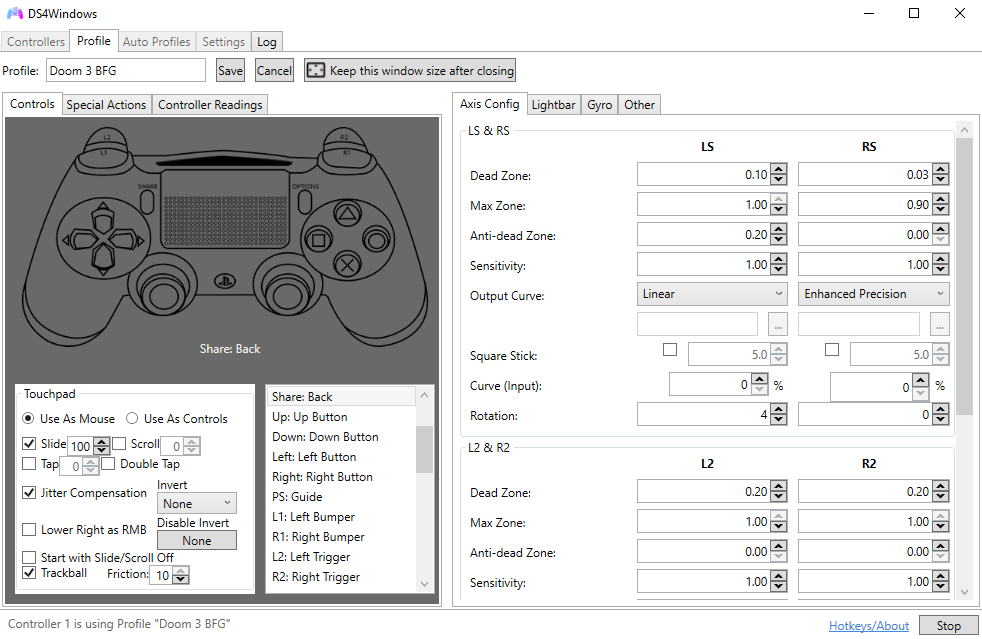
- Dead Zone: Set to minimum (0-5%) for maximum precision
- Anti-Dead Zone: Compensate for stick wear
- Sensitivity: Adjust for your play style
- Response Curve: Linear for consistent input
ट्रिगर कैलिब्रेशन
- Hair Trigger: Enable for fastest response
- Trigger Sensitivity: Set to maximum
- Analog Range: Full range for precise control
System-Level अनुकूलनs
Optimize your Windows system for gaming performance:
Windows सेटिंग्स
- Game Mode: Enable Windows Game Mode
- High प्रदर्शन: Set power plan to High प्रदर्शन
- Background Apps: Disable unnecessary background applications
- Windows Updates: Schedule updates outside gaming hours
DS4Windows प्राथमिकता
- High Priority: Set DS4Windows to high process priority
- CPU Affinity: Assign to high-performance cores
- Memory Management: Ensure adequate RAM allocation
Game-Specific अनुकूलनs
Different games require different optimization strategies:
First-Person Shooters (FPS)
FPS अनुकूलन Settings
- Polling Rate: 1000Hz for maximum responsiveness
- Dead Zones: Minimal for precise aiming
- Response Curve: Linear for consistent aim
- Trigger Response: Hair trigger for quick shooting
- Rumble: Disabled to avoid distraction
Fighting गेम्स
फाइटिंग गेम सेटिंग्स
- D-Pad Sensitivity: Maximum for precise inputs
- Button Response: Instant for combo execution
- Macro Support: Enable for complex moves
- Input Buffering: Optimize for frame-perfect inputs
Racing गेम्स
रेसिंग गेम सेटिंग्स
- Trigger Curves: Gradual for smooth acceleration
- Steering Sensitivity: High for quick turns
- Rumble: Enhanced for road feedback
- Analog Precision: Maximum for fine control
उन्नत प्रदर्शन Monitoring
Monitor your controller's performance in real-time:
DS4Windows मॉनिटरिंग टूल्स
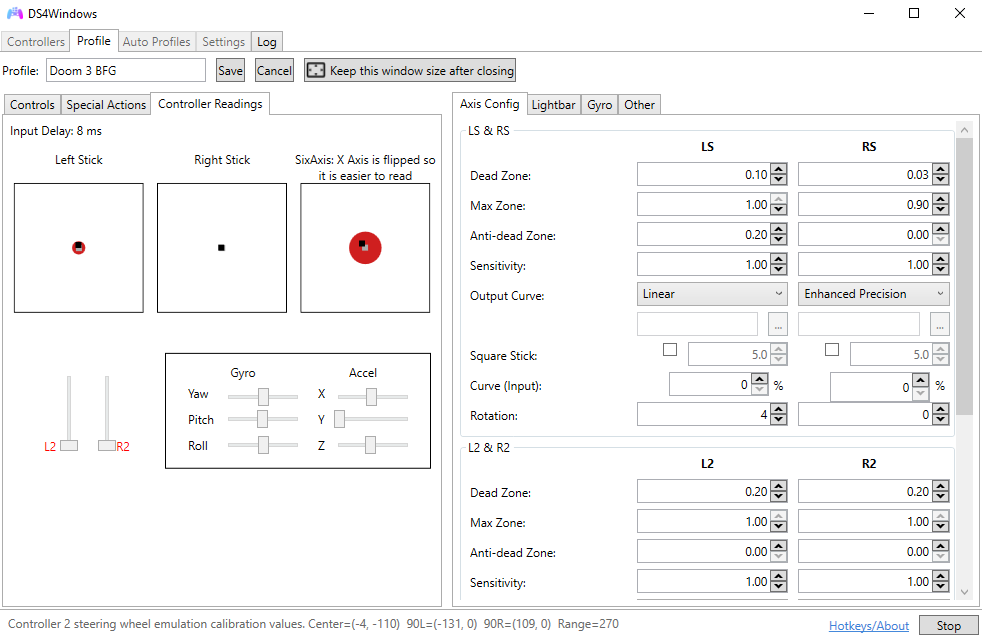
- इनपुट लैग: Monitor input delay in real-time
- Polling Rate: Verify actual polling frequency
- कनेक्शन Quality: Check signal strength and stability
- Battery Status: Monitor power levels during play
थर्ड‑पार्टी टूल्स
- LatencyMon: System-wide latency monitoring
- MSI Afterburner: System performance monitoring
- Process Monitor: DS4Windows process analysis
प्रतिस्पर्धी Gaming Best Practices
Follow these professional tips for optimal performance:
Pre-Game सेटअप
- Controller Check: Test all buttons and sticks before matches
- कनेक्शन Test: Verify stable connection
- Settings Verification: Confirm optimal configuration
- System Cleanup: Close unnecessary applications
प्रतियोगिता के दौरान
- Consistent Grip: Maintain consistent controller hold
- Regular Breaks: Prevent hand fatigue
- Monitor प्रदर्शन: Watch for input lag spikes
- Backup Plan: Have alternative settings ready
समस्या निवारण प्रदर्शन Issues
Common performance problems and solutions:
इनपुट लैग स्पाइक्स
- Check for background processes consuming CPU
- Verify exclusive mode is enabled
- Test with USB connection
- Update DS4Windows to latest version
Inconsistent प्रदर्शन
- Disable Windows power management
- Set DS4Windows to high priority
- Check for driver conflicts
- Monitor system temperature
Professional Gaming सुझाव
- Practice with Settings: Use the same settings in practice and competition
- Document Configurations: Keep records of optimal settings
- Regular Updates: Keep DS4Windows and drivers updated
- Hardware Maintenance: Keep controller clean and in good condition
- Network अनुकूलन: Optimize internet connection for online play
निष्कर्ष
Optimizing DS4Windows for competitive gaming requires attention to detail and systematic configuration. By following these professional techniques, you can achieve the lowest possible input lag and most consistent performance.
Remember that optimization is an ongoing process. Regularly test and adjust your settings to maintain peak performance as your skills and hardware evolve.