कंट्रोलर सपोर्ट विकल्पों का परिचय
When using a DualShock 4 controller on Windows, you have two main options: DS4Windows and स्टीम's built-in controller support. Each has its strengths and weaknesses, and understanding the differences will help you choose the best solution for your gaming needs.
DS4Windows का अवलोकन
DS4Windows is a dedicated third-party application specifically designed for DualShock 4 controllers on Windows:
Key विशेषताएँ
- Dedicated DS4 Support: Built specifically for DualShock 4
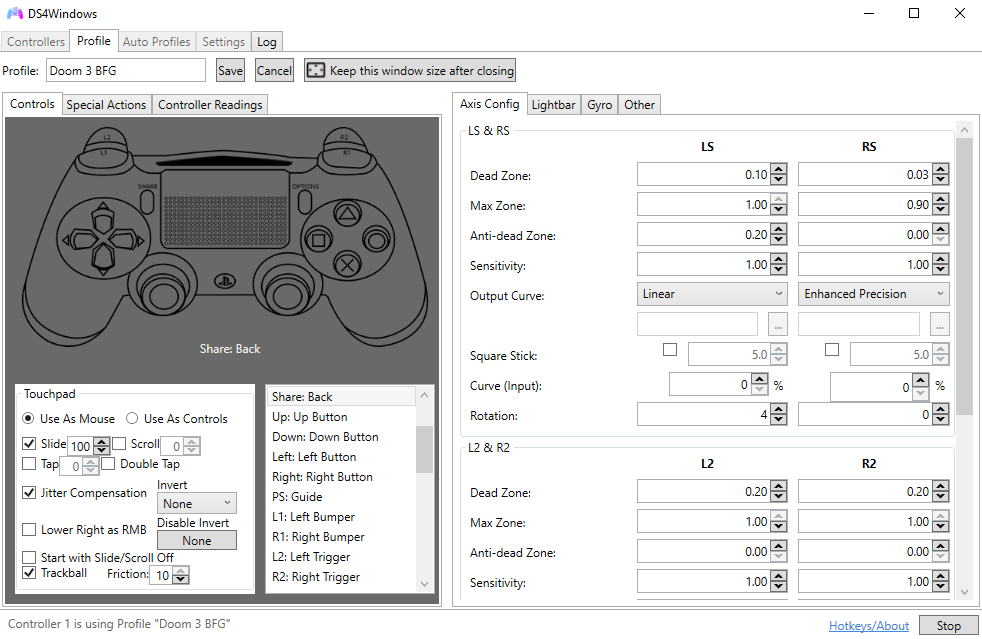
- उन्नत कस्टमाइज़ेशन: Extensive configuration options
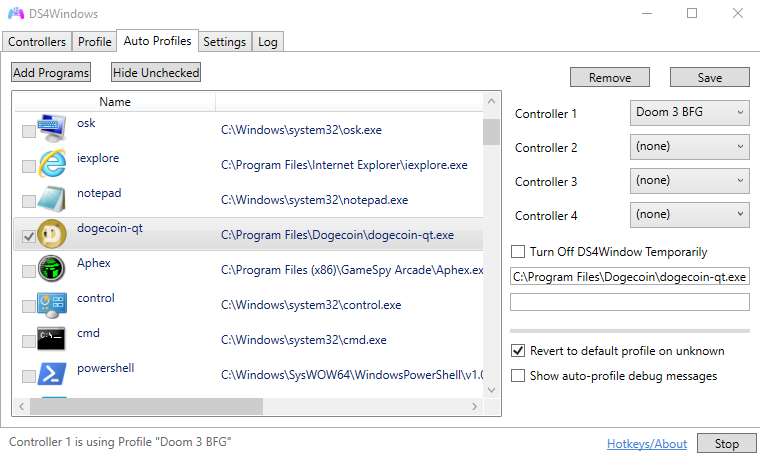
- Profile Management: Game-specific profiles
- Macro Support: Complex button combinations
- Light Bar Control: Full RGB customization
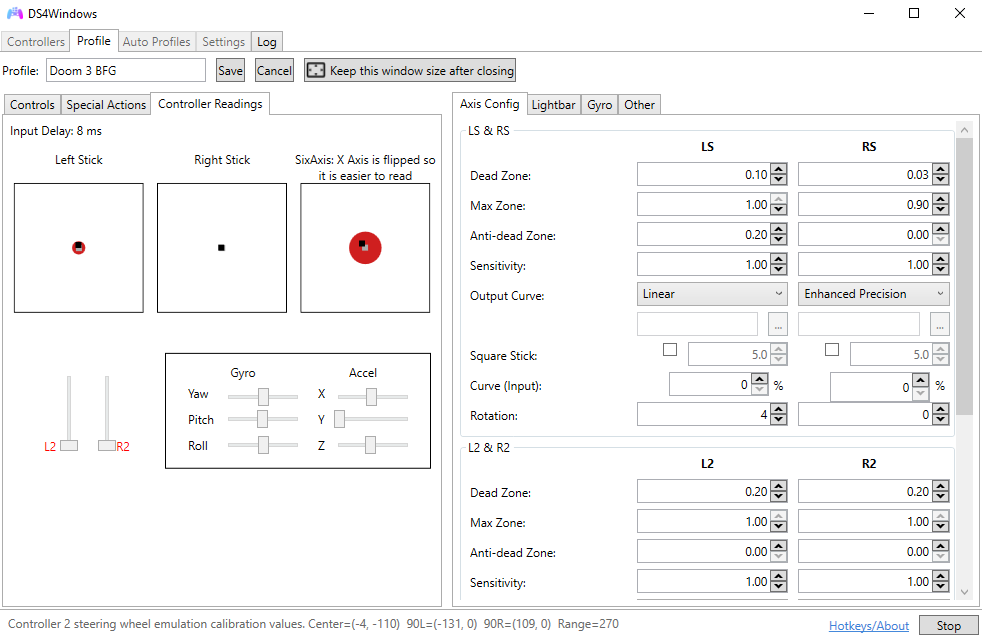
- जाइरोस्कोप Support: Motion control features
फायदे
- Specialized विशेषताएँ: Purpose-built for DS4 controllers
- High कस्टमाइज़ेशन: Extensive configuration options
- प्रदर्शन: Optimized for low latency
- Compatibility: Works with all games and applications
- Community Support: Active development and support
स्टीम Controller Support
स्टीम's built-in controller support provides basic functionality for various controllers including the DualShock 4:
Key विशेषताएँ
- Multi-Controller Support: Works with various controllers
- स्टीम एकीकरण: Seamless integration with स्टीम
- Big Picture Mode: Controller-friendly interface
- स्टीम Input: Unified input system
- Cloud प्रोफ़ाइल: Sync profiles across devices
- Community Configurations: Share and download configs
फायदे
- स्टीम एकीकरण: Works seamlessly with स्टीम games
- No Additional Software: Built into स्टीम client
- Cloud Sync: प्रोफ़ाइल sync across devices
- Community विशेषताएँ: Share configurations
- Regular Updates: Updated with स्टीम client
Detailed तुलना
Here's a comprehensive comparison of both solutions:
Feature तुलना Table
Feature तुलना
| Feature | DS4Windows | स्टीम |
|---|---|---|
| सेटअप Complexity | Medium | Easy |
| कस्टमाइज़ेशन | Extensive | Basic |
| Non-स्टीम गेम्स | Excellent | Limited |
| प्रदर्शन | Excellent | Good |
| Macro Support | उन्नत | Basic |
DS4Windows कब उपयोग करें
Choose DS4Windows in these scenarios:
आदर्श उपयोग‑परिदृश्य
- Non-स्टीम गेम्स: Playing games outside of स्टीम
- उन्नत कस्टमाइज़ेशन: Need extensive configuration options
- प्रतिस्पर्धी Gaming: Require maximum performance and precision
- Macro Requirements: Need complex button combinations
- Light Bar Control: Want full RGB customization
- जाइरोस्कोप Usage: Need motion control features
किसके लिए उपयुक्त
- प्रतिस्पर्धी gamers who need maximum performance
- Users who play games from multiple platforms
- Players who want extensive customization options
- Users who need macro functionality
- Players who want to use all DS4 features
When to Use स्टीम Controller Support
Choose स्टीम's controller support in these scenarios:
आदर्श उपयोग‑परिदृश्य
- स्टीम-Only Gaming: Primarily play स्टीम games
- Simplicity: Want easy setup and configuration
- Cloud Sync: Need profiles to sync across devices
- Community विशेषताएँ: Want to share configurations
- Big Picture Mode: Use स्टीम's Big Picture interface
- Multi-Controller: Use different controller types
किसके लिए उपयुक्त
- Casual gamers who primarily use स्टीम
- Users who want simple, integrated solutions
- Players who use multiple controller types
- Users who want cloud-synced profiles
- Players who prefer स्टीम's ecosystem
सर्वोत्तम अनुकूलता के लिए कॉन्फ़िगरेशन
To avoid conflicts and ensure optimal performance:
दोनों समाधानों का उपयोग
टकराव‑रोकथाम
- Disable स्टीम Support: Turn off स्टीम controller support when using DS4Windows
- Exclusive Mode: Enable exclusive mode in DS4Windows
- Hide DS4 Controller: Hide the original controller to prevent conflicts
- Profile Management: Use different profiles for different scenarios
स्टीम Configuration
- Open स्टीम Settings: Go to स्टीम > Settings
- कंट्रोलर सेटिंग्स: Navigate to Controller section
- Disable DS4 Support: Uncheck "PlayStation Configuration Support"
- Apply Changes: Save and restart स्टीम if needed
DS4Windows कॉन्फ़िगरेशन
- Enable Exclusive Mode: Check "Hide DS4 Controller"
- Set High Priority: Set process priority to high
- Optimize Polling: Set polling rate to 1000Hz
- Profile सेटअप: Create game-specific profiles
प्रदर्शन तुलना
Understanding the performance differences:
इनपुट लैग
- DS4Windows: 1-2ms with optimal settings
- स्टीम: 3-5ms typical latency
- USB कनेक्शन: Lowest latency for both
- ब्लूटूथ: Higher latency, varies by adapter
CPU उपयोग
- DS4Windows: 1-3% CPU usage
- स्टीम: 2-5% CPU usage
- Background Impact: Minimal for both solutions
Recommendations
Based on different gaming scenarios:
For प्रतिस्पर्धी Gaming
Recommendation: DS4Windows
- Lower input latency
- More precise control options
- Better performance optimization
- उन्नत customization features
For Casual Gaming
Recommendation: स्टीम Controller Support
- Easier setup and configuration
- Integrated with स्टीम ecosystem
- Cloud profile synchronization
- Community configuration sharing
For Mixed Gaming
Recommendation: DS4Windows
- Works with all games and platforms
- Consistent experience across games
- More reliable for non-स्टीम games
- Better long-term compatibility
निष्कर्ष
Both DS4Windows and स्टीम's controller support have their place in the gaming ecosystem. DS4Windows excels in customization, performance, and compatibility with all games, while स्टीम's solution provides simplicity and integration for स्टीम-focused users.
For most users, DS4Windows is the better choice due to its superior performance, extensive customization options, and universal compatibility. However, if you primarily play स्टीम games and prefer simplicity, स्टीम's built-in support may be sufficient for your needs.