Introduction to DS4Windows
DS4Windows is a powerful, free application that allows you to use your PlayStation DualShock 4 controller on Windows PC. Whether you're a casual gamer or a competitive player, DS4Windows provides seamless integration with your favorite games, offering advanced customization options and professional-grade features.
System Requirements
Before installing DS4Windows, ensure your system meets these requirements:
- Operating System: Windows 10 (64-bit) or Windows 11
- Processor: Intel Core i3 or AMD equivalent
- Memory: 2 GB RAM minimum (4 GB recommended)
- Storage: 50 MB available space
- Controller: DualShock 4 (any revision)
- Connectivity: Bluetooth 2.1+ or USB 2.0
Step 1: Download DS4Windows
Visit the official DS4Windows GitHub repository to download the latest version. The application is completely free and open-source, ensuring regular updates and community support.
Download Links
Step 2: Install Required Dependencies
DS4Windows requires several components to function properly. These will be automatically detected and prompted for installation when you first run the application.
Required Components:
- .NET Framework 4.8: Runtime environment for DS4Windows
- ViGEmBus Driver: Virtual gamepad emulation driver
- Visual C++ Redistributable: Required runtime components
Step 3: Controller Connection
Connect your DualShock 4 controller to your PC using one of these methods:
USB Connection (Recommended for Setup)
- Connect your DualShock 4 to your PC using a USB cable
- Windows should automatically detect the controller
- Wait for driver installation to complete
Bluetooth Connection
- Enable Bluetooth on your PC
- Hold PS + Share buttons on your controller for 3 seconds
- Select "Wireless Controller" from the Bluetooth devices list
- Complete the pairing process
Step 4: First Launch Configuration
When you first launch DS4Windows, you'll be guided through the initial setup process:
- Driver Installation: Install ViGEmBus driver if prompted
- Controller Detection: Your controller should appear in the main window
- Profile Selection: Choose a default profile or create a new one
- Settings Configuration: Adjust basic settings for your preferences
Step 5: Basic Configuration
Configure DS4Windows for optimal performance with these essential settings:
Controller Settings
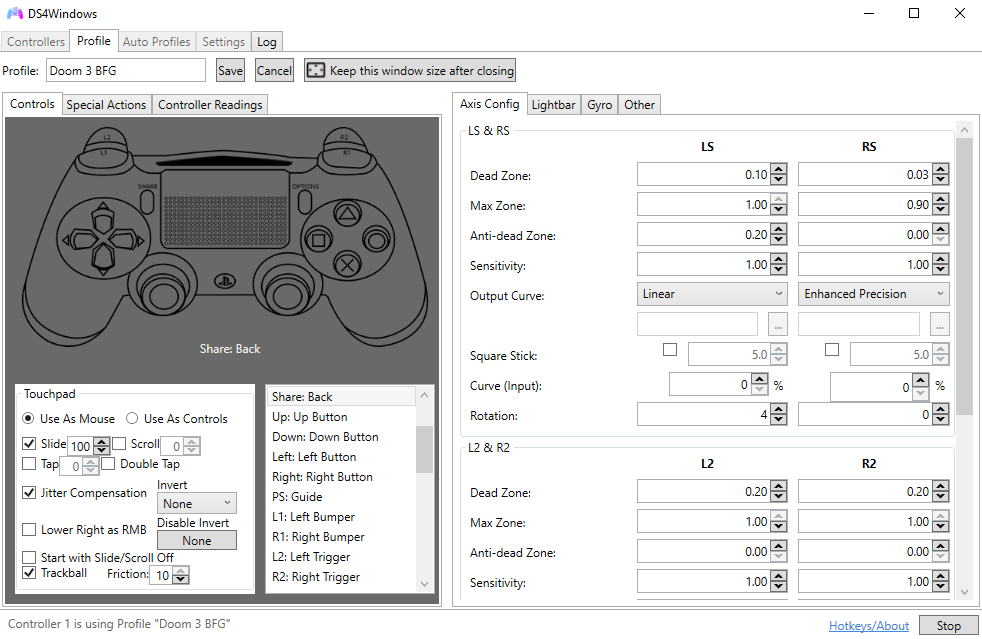
- Hide DS4 Controller: Enable to prevent conflicts with games
- Exclusive Mode: Recommended for best performance
- Polling Rate: Set to 1000Hz for competitive gaming
Light Bar Settings
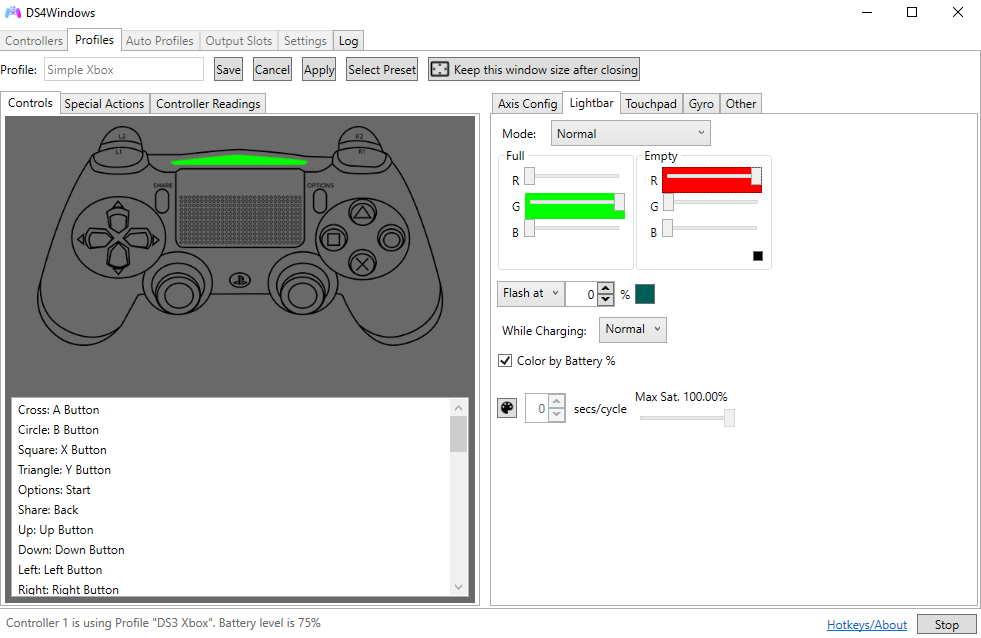
- Battery Indicator: Use light bar to show battery level
- Custom Colors: Set your preferred RGB colors
- Game Integration: Enable for supported games
Step 6: Testing Your Setup
Verify that everything is working correctly:
- Open DS4Windows and check controller status
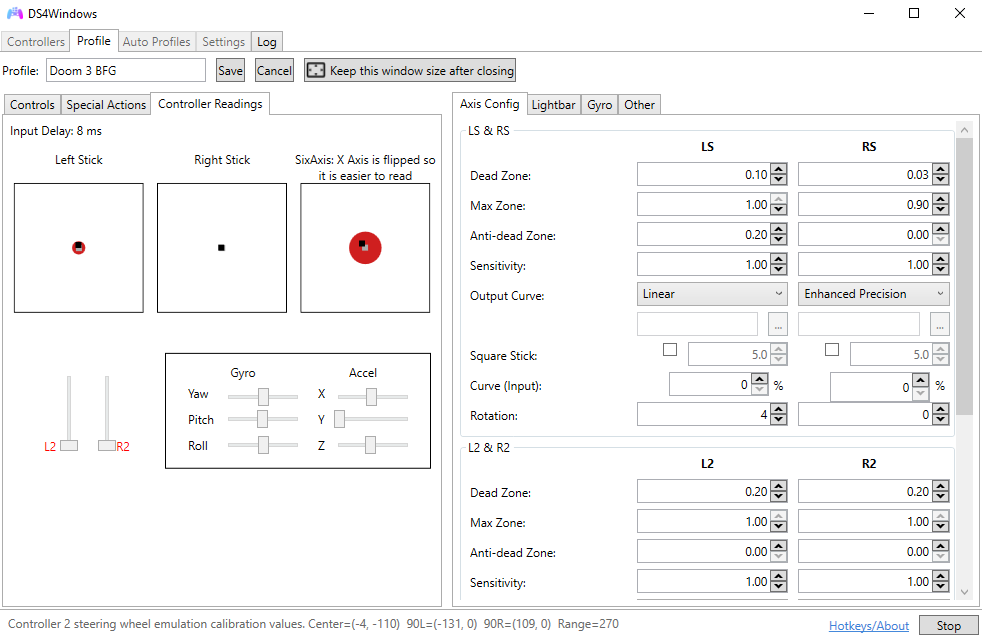
- Test all buttons and analog sticks
- Verify rumble functionality
- Check light bar responsiveness
- Test with a compatible game
Troubleshooting Common Issues
If you encounter problems during setup, try these solutions:
Controller Not Detected
- Ensure USB cable is data-capable, not just for charging
- Try a different USB port
- Restart DS4Windows as administrator
- Check Windows Device Manager for driver issues
Bluetooth Connection Problems
- Update Bluetooth drivers
- Disable power management for Bluetooth adapter
- Remove and re-pair the controller
- Check for interference from other devices
Advanced Tips for Better Performance
- USB Connection: Use wired connection for lowest latency
- Exclusive Mode: Always enable for best performance
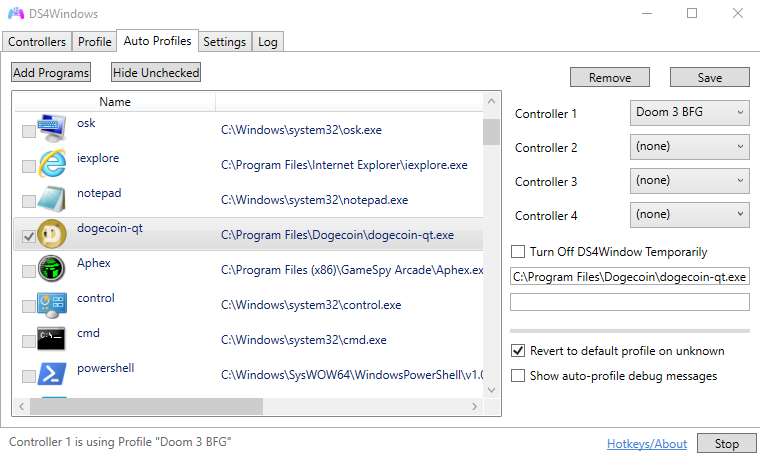
- Profile Management: Create game-specific profiles
- Regular Updates: Keep DS4Windows updated for latest features
Conclusion
With DS4Windows properly configured, you now have a powerful tool that transforms your DualShock 4 into the ultimate PC gaming controller. The application offers extensive customization options, professional-grade features, and seamless integration with thousands of games.
For more advanced features and customization options, explore our other guides on profile management, macro creation, and performance optimization.