Understanding DS4 Battery Life
The DualShock 4 controller's battery life can vary significantly based on usage patterns, settings, and environmental factors. Understanding how different features affect battery consumption is key to maximizing your gaming sessions without interruption.
Battery Consumption Factors
Several factors impact your controller's battery life:
- Light Bar Brightness: Higher brightness consumes more power
- Rumble Intensity: Strong rumble effects drain battery faster
- Audio Usage: Wireless audio significantly reduces battery life
- Connection Type: Bluetooth uses more power than USB
- Polling Rate: Higher polling rates increase power consumption
DS4Windows Power Management
Configure DS4Windows settings for optimal battery life:
Light Bar Optimization
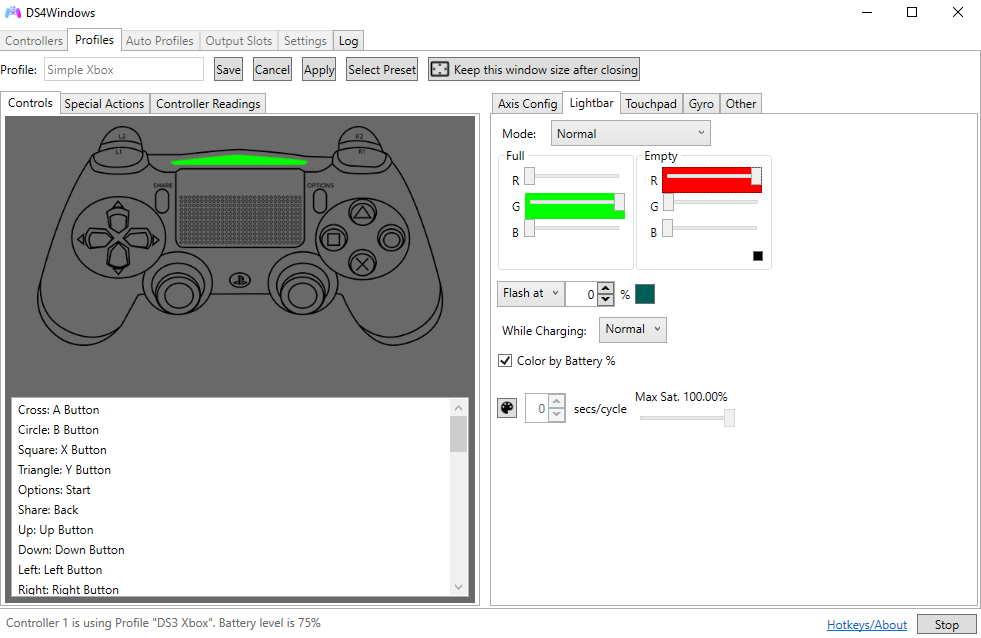
Light Bar Settings for Battery Life
- Dim Mode: Set brightness to 10-25% for maximum battery life
- Battery Indicator: Use light bar to show battery level
- Auto-Dim: Enable automatic dimming during inactivity
- Game-Specific: Disable light bar for games that don't use it
Rumble Optimization
- Reduce Intensity: Lower rumble strength to save power
- Selective Rumble: Disable rumble for non-essential feedback
- Battery Mode: Use reduced rumble when battery is low
Connection Optimization
Choose the right connection method for your needs:
USB vs Bluetooth
- USB Connection: No battery drain, unlimited play time
- Bluetooth: Wireless freedom but drains battery
- Hybrid Approach: Use USB for long sessions, Bluetooth for short ones
Bluetooth Optimization
- Quality Adapter: Use a good Bluetooth adapter for efficient connection
- Reduce Interference: Minimize sources of Bluetooth interference
- Optimal Distance: Stay within 10 feet of the Bluetooth adapter
Advanced Power Settings
Fine-tune advanced settings for maximum efficiency:
Polling Rate Optimization
- Casual Gaming: Use 250Hz polling rate
- Competitive Gaming: Use 500Hz for balance
- Maximum Performance: Use 1000Hz only when needed
Audio Settings
- Disable Audio: Turn off wireless audio when not needed
- Lower Quality: Use lower audio quality for longer battery life
- Selective Audio: Use audio only for voice chat
Charging Best Practices
Proper charging habits extend battery longevity:
Charging Guidelines
- Regular Charging: Charge after each gaming session
- Avoid Deep Discharge: Don't let battery drain completely
- Quality Charger: Use a good quality USB charger
- Proper Cable: Use a data-capable USB cable
Battery Maintenance
- Storage: Store controller with 50-80% charge
- Temperature: Avoid extreme temperatures during charging
- Calibration: Occasionally let battery drain and fully charge
Monitoring Battery Life
Keep track of your controller's battery status:
DS4Windows Battery Monitoring
- Real-time Display: Monitor battery level in DS4Windows
- Low Battery Warnings: Set up notifications for low battery
- Battery History: Track battery usage patterns
Windows Battery Monitoring
- Device Manager: Check battery status in Device Manager
- Bluetooth Settings: Monitor battery in Bluetooth settings
- Third-party Tools: Use specialized battery monitoring software
Game-Specific Optimizations
Optimize settings for different game types:
FPS Games
- Minimal Light Bar: Use dim light bar or disable completely
- Reduced Rumble: Lower rumble intensity for precision
- High Polling Rate: Use 1000Hz for competitive advantage
Casual Games
- Standard Settings: Use default light bar and rumble
- Lower Polling Rate: Use 250Hz for battery efficiency
- Audio Enabled: Enjoy wireless audio for immersion
Emergency Power Management
When battery is critically low:
Power Saving Mode
- Disable Light Bar: Turn off light bar completely
- Disable Rumble: Turn off all rumble effects
- Disable Audio: Turn off wireless audio
- Lower Polling Rate: Reduce to 125Hz
Quick Charging
- USB Connection: Switch to USB for immediate charging
- Fast Charger: Use a fast-charging USB adapter
- Gaming While Charging: Continue playing while charging
Long-term Battery Health
Maintain battery health over time:
Battery Care Tips
- Avoid Overcharging: Don't leave controller charging overnight regularly
- Temperature Control: Keep controller at room temperature
- Regular Use: Use the controller regularly to maintain battery health
- Proper Storage: Store in a cool, dry place
Battery Replacement
- Signs of Degradation: Noticeably shorter battery life
- Replacement Options: Consider official or third-party batteries
- Professional Service: Have battery replaced by professionals if needed
Power Management Profiles
Create different profiles for different scenarios:
Battery Saver Profile
- Light bar: 10% brightness
- Rumble: Disabled
- Audio: Disabled
- Polling rate: 125Hz
Performance Profile
- Light bar: 100% brightness
- Rumble: Full intensity
- Audio: Enabled
- Polling rate: 1000Hz
Balanced Profile
- Light bar: 50% brightness
- Rumble: Medium intensity
- Audio: Voice chat only
- Polling rate: 500Hz
Conclusion
Optimizing your DualShock 4's battery life requires balancing performance with power consumption. By adjusting light bar brightness, rumble settings, and connection methods, you can significantly extend your gaming sessions.
Remember that battery life will naturally decrease over time, but proper care and optimization can help maintain good performance for years. Experiment with different settings to find the perfect balance for your gaming needs.